How to generate MonsoonSIM Live Access for Tableau and Google Data Studio:
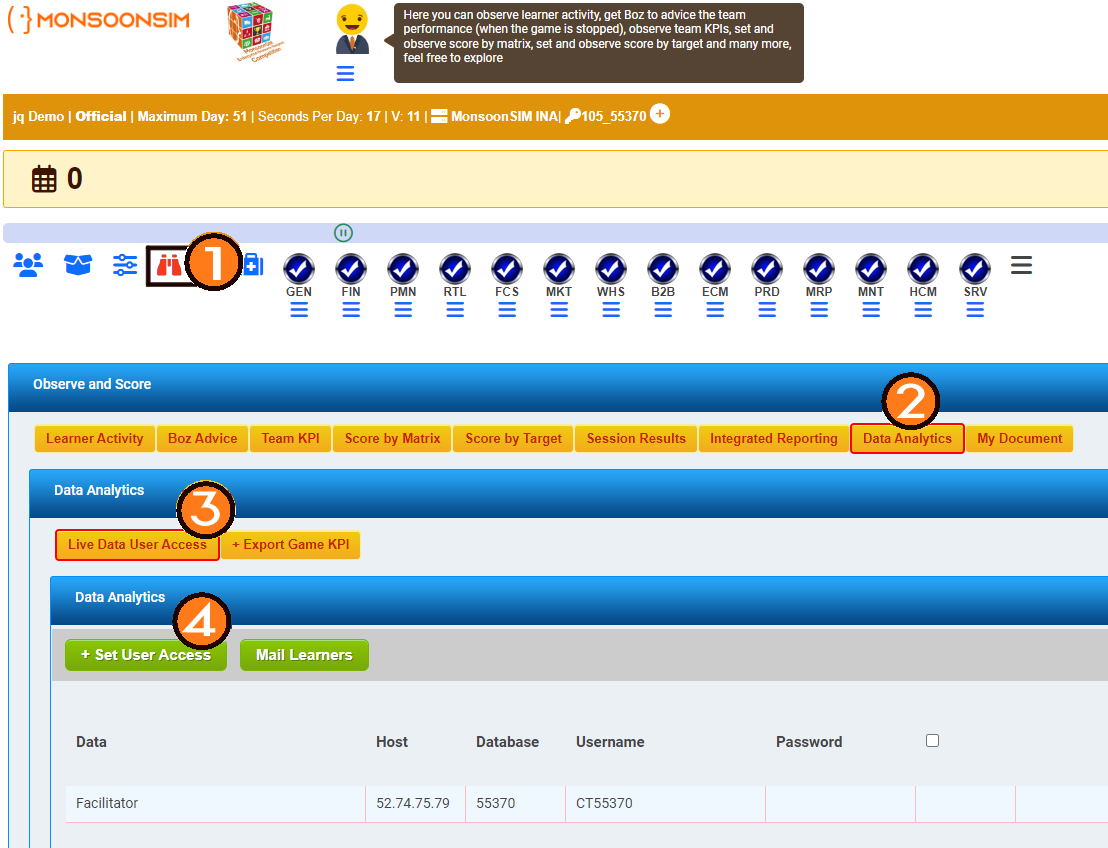
- Click the option
- Go to "Data Analytics"
- Go to Live Data User Access
- Set the User Access (to get the password and team data)
Introduction to the User Access:
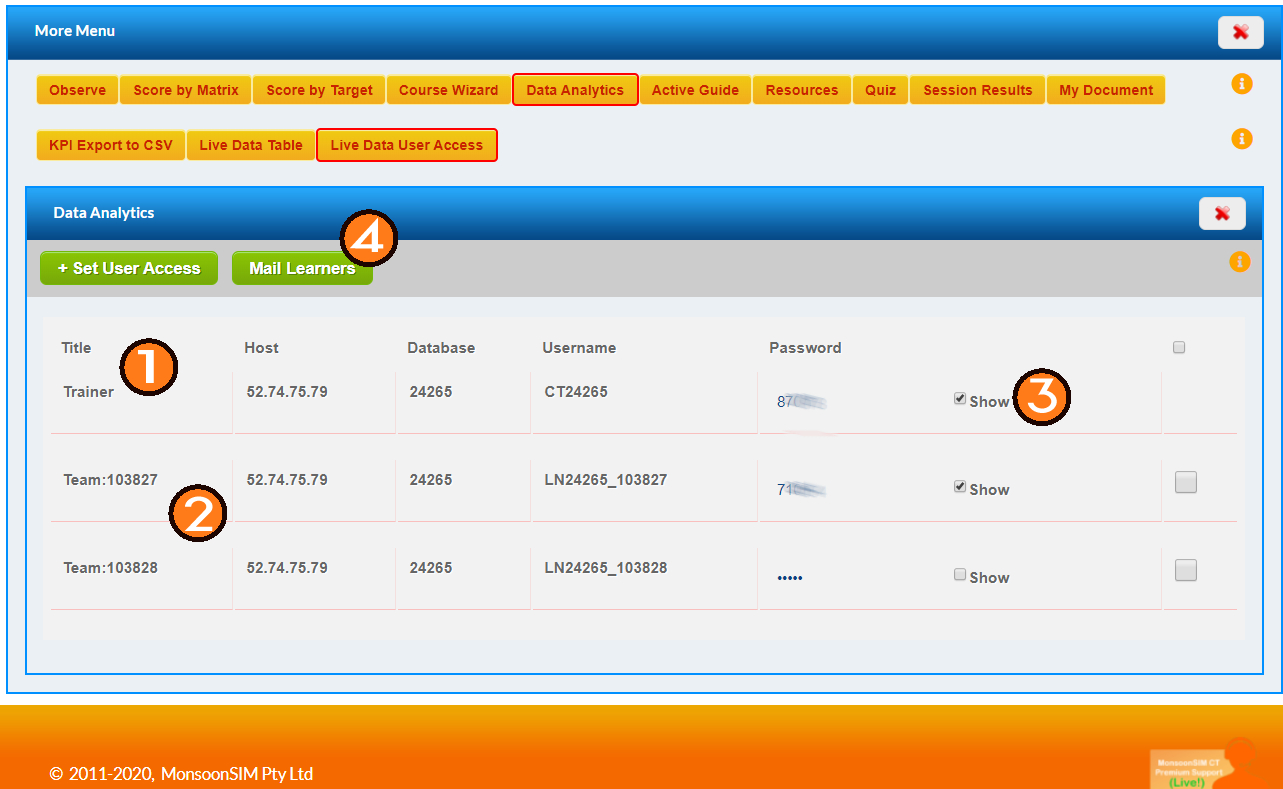
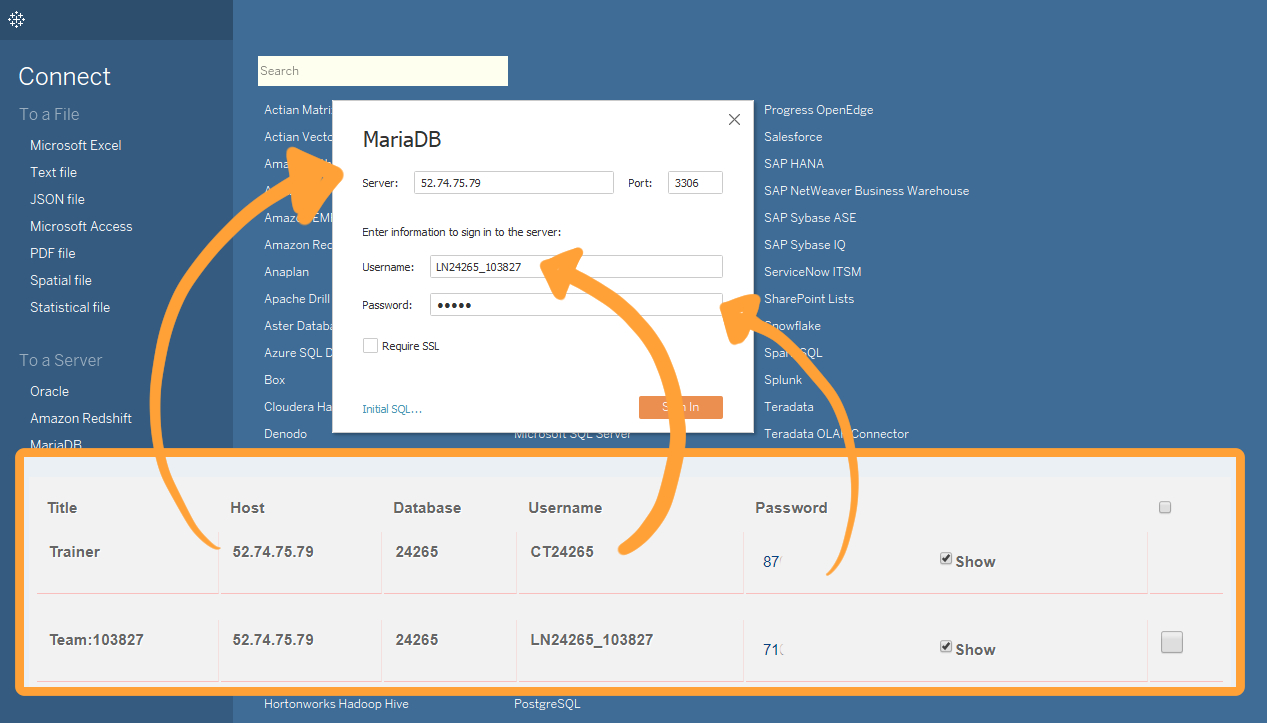
- "Trainer" section contains data of ALL TEAMS
- "Team:[Team ID]" section contains data for a specific team
- Click the tick button to show the password
- You can select specific info and mail it to your learners
- The data provided are:
- Inventory
- Marketing
- Procurement
- Sales
Exporting the data:
Power BI
Setting up MariaDB connector for Power BI:
- Download MySQL ODBC Connector for your operating system
- Click on the download or choose "Open" to start the MySQL ODBC Connector Setup Wizard.
- Follow the installation instruction
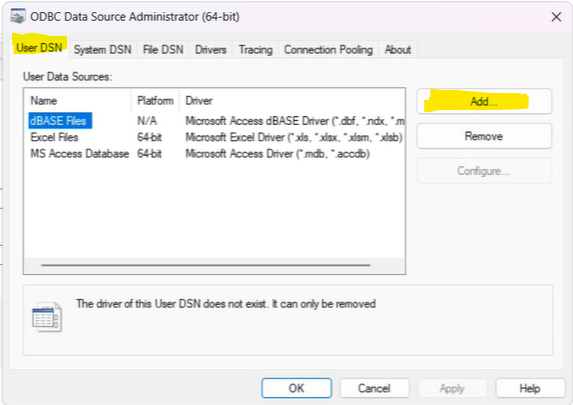
- Open the installed ODBC data source.
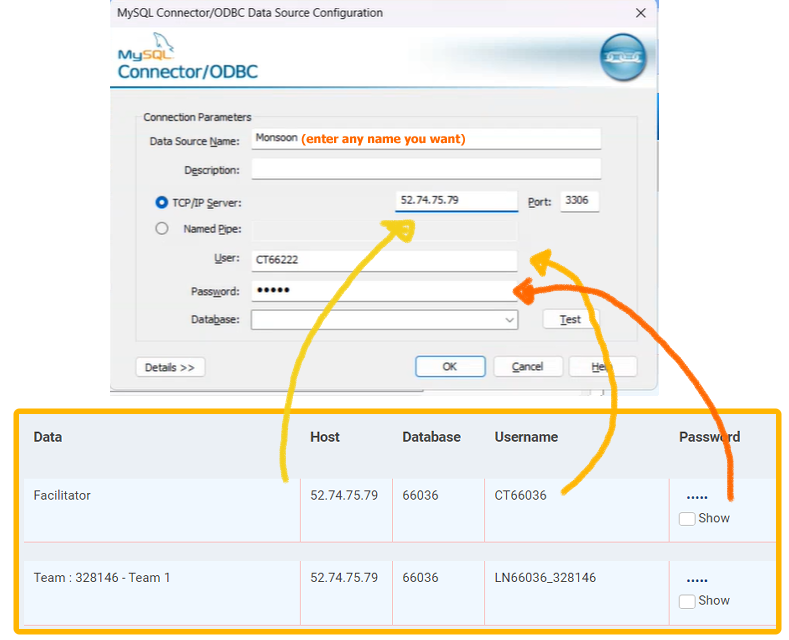
- Click "Add"
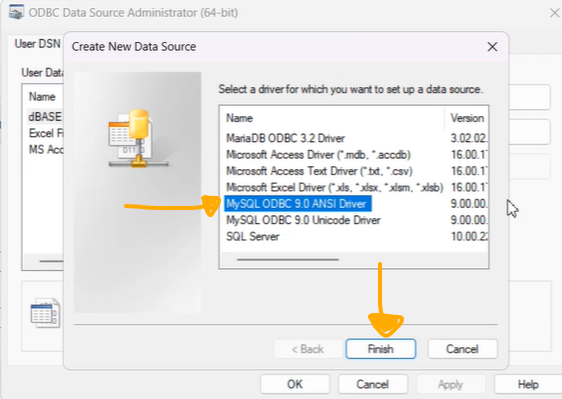
- Choose the "MySQL ODBC ANSI Driver" and click finis
- A popup will show and you need to fill the username and password based on your monsoonsim game and press "ok
In the power BI, start by importing the data, choose 'get data from other sources'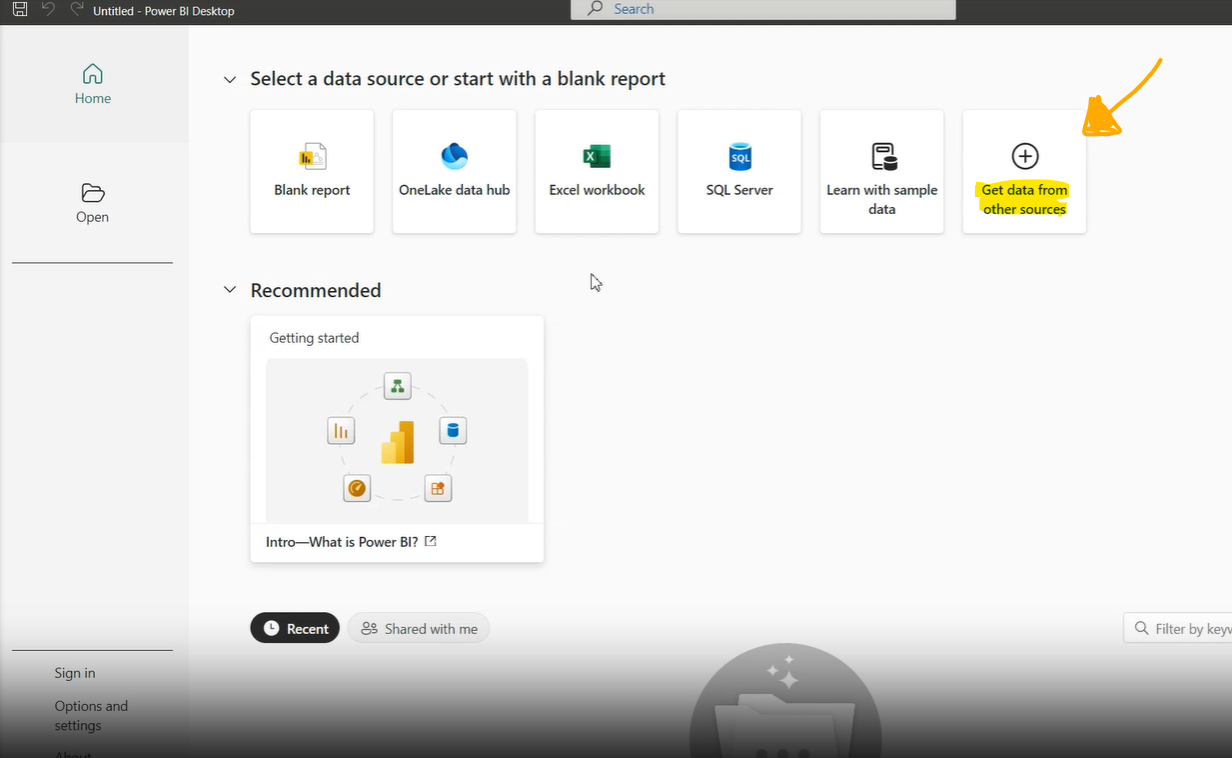
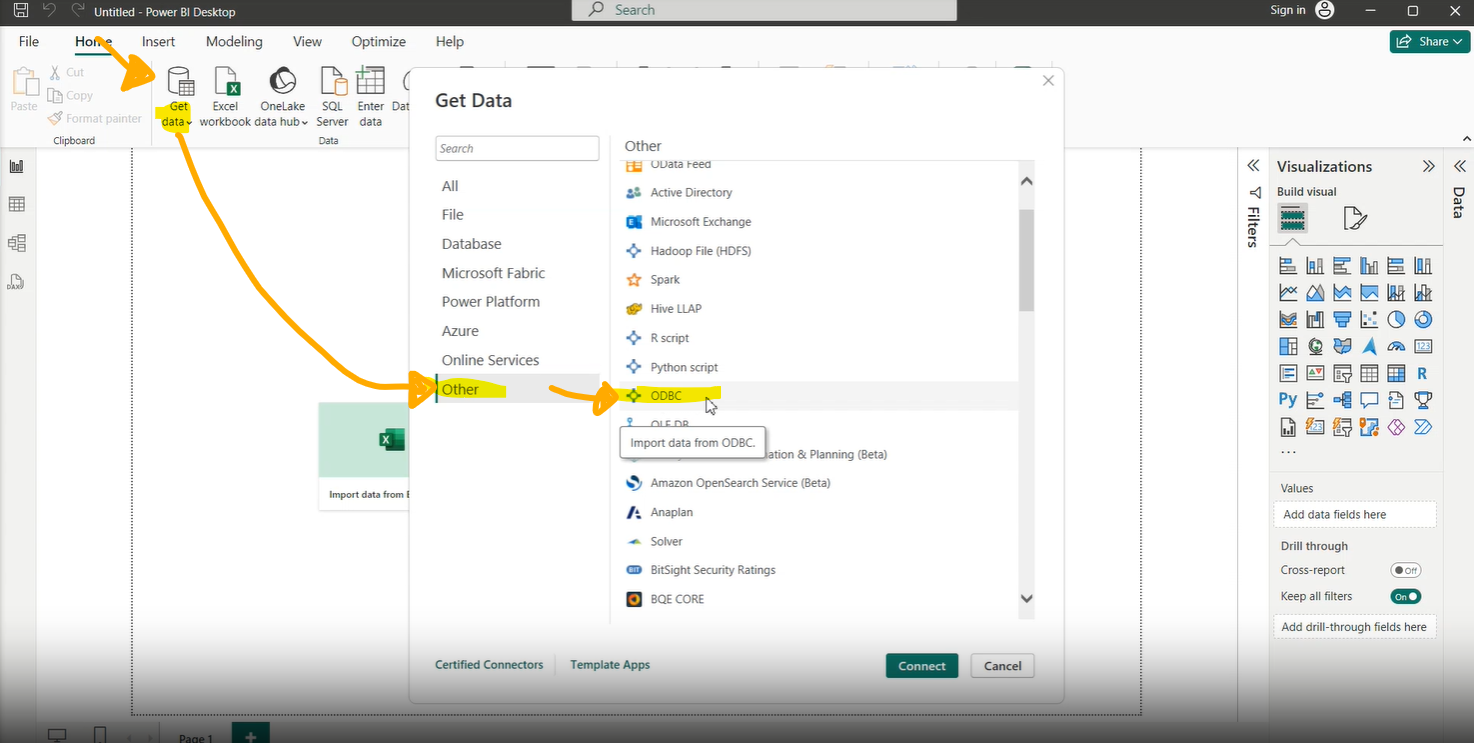
Choose 'Other' and find ODBC, click connect
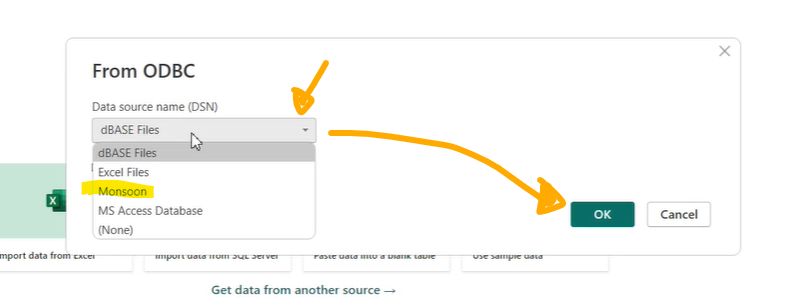
Find your created Data Source name and click "ok"
Tableau
https://www.tableau.com/
In the tableau, we can connect the data with a MariaDB option (Note that you need to use Tableau Desktop for this option to appear)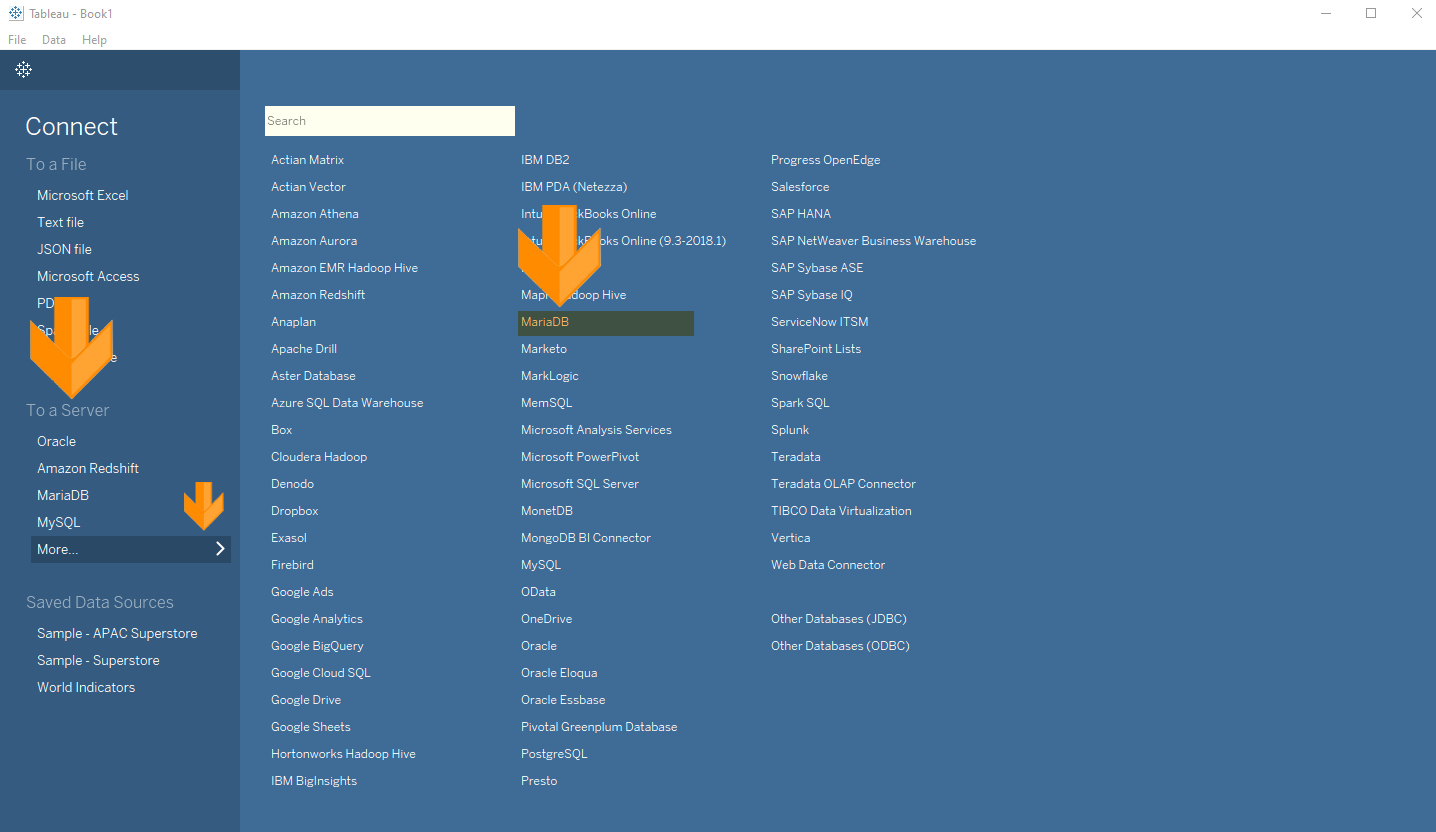
Input the data according to the info in the MonsoonSIM Live Access, then press "Sign In"
Google Data Studio
https://datastudio.google.com/
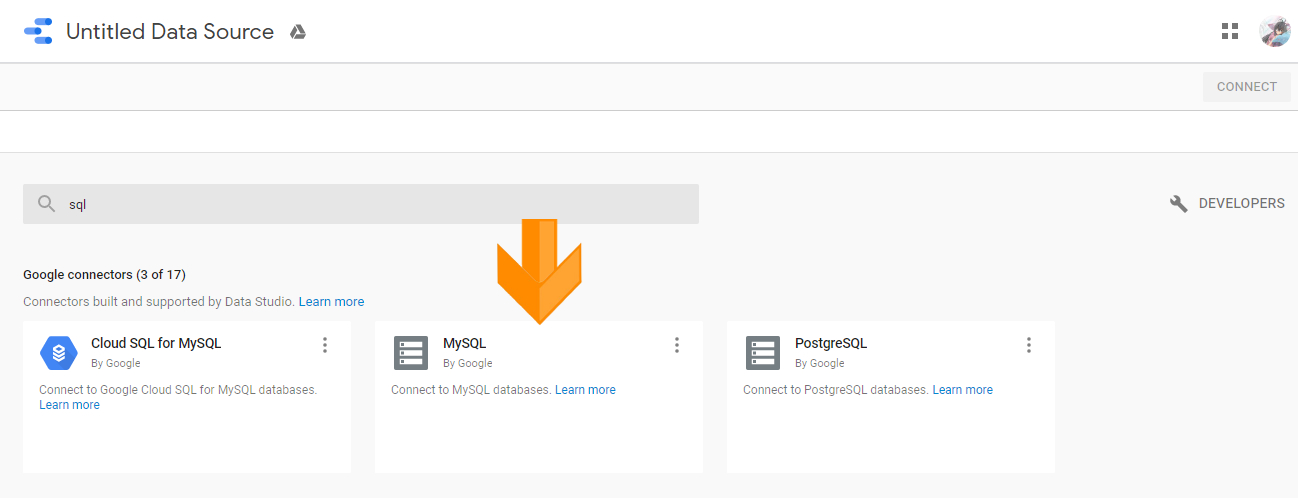
Make a new report 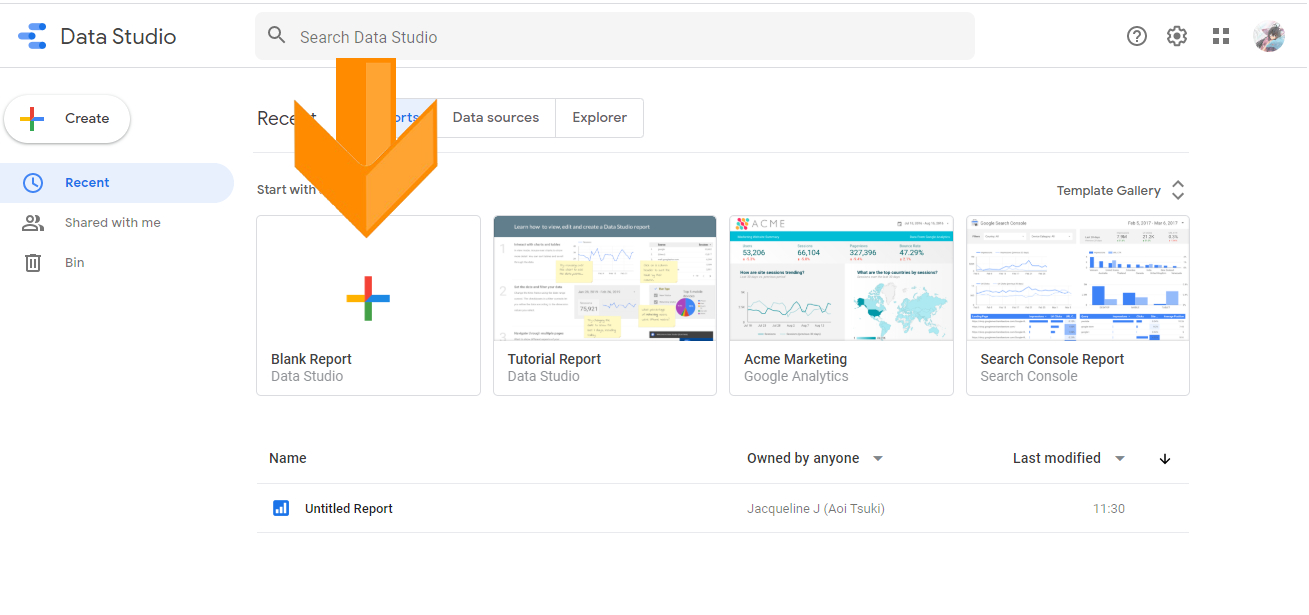
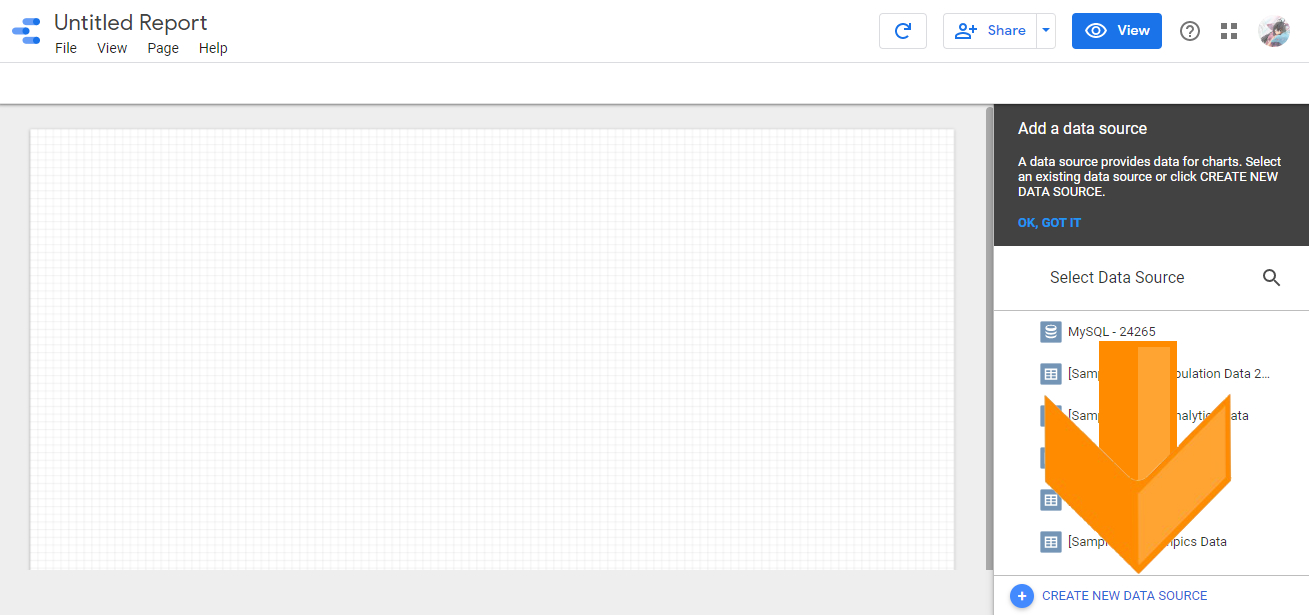
Then, insert the data
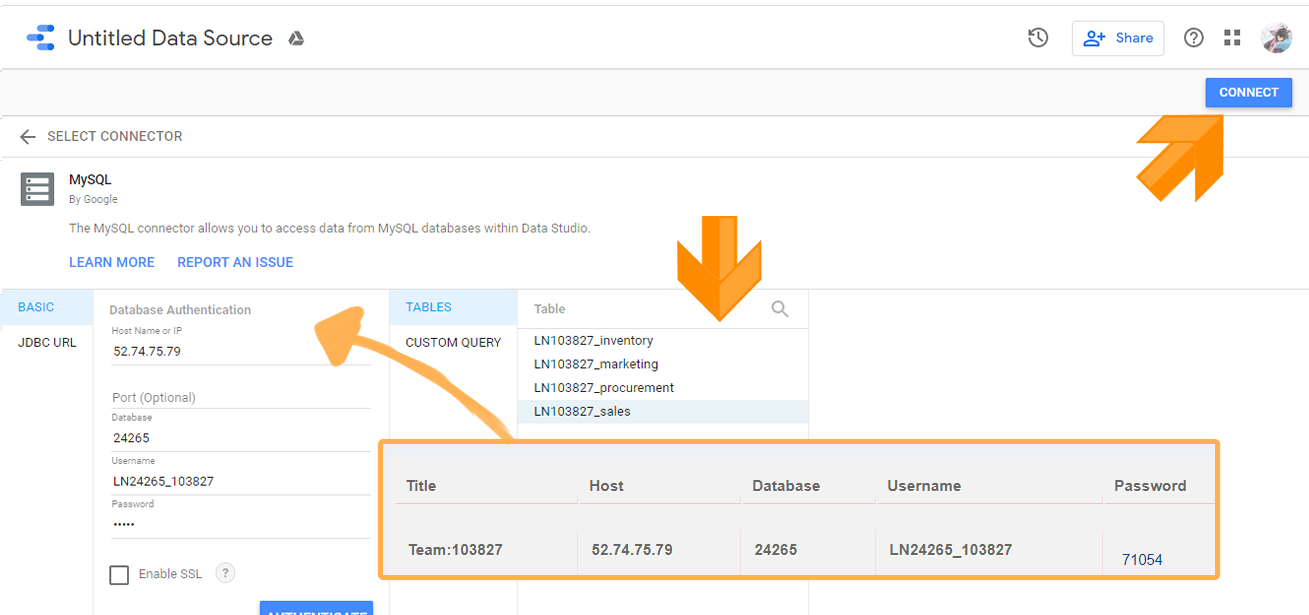
Exporting to Excel
Things needed:
- Visual Studio 2010 Tools for Office Runtime: https://www.microsoft.com/en-us/download/details.aspx?id=48217
- MySQL for Excel: https://dev.mysql.com/downloads/windows/excel/
- Microsoft Excel
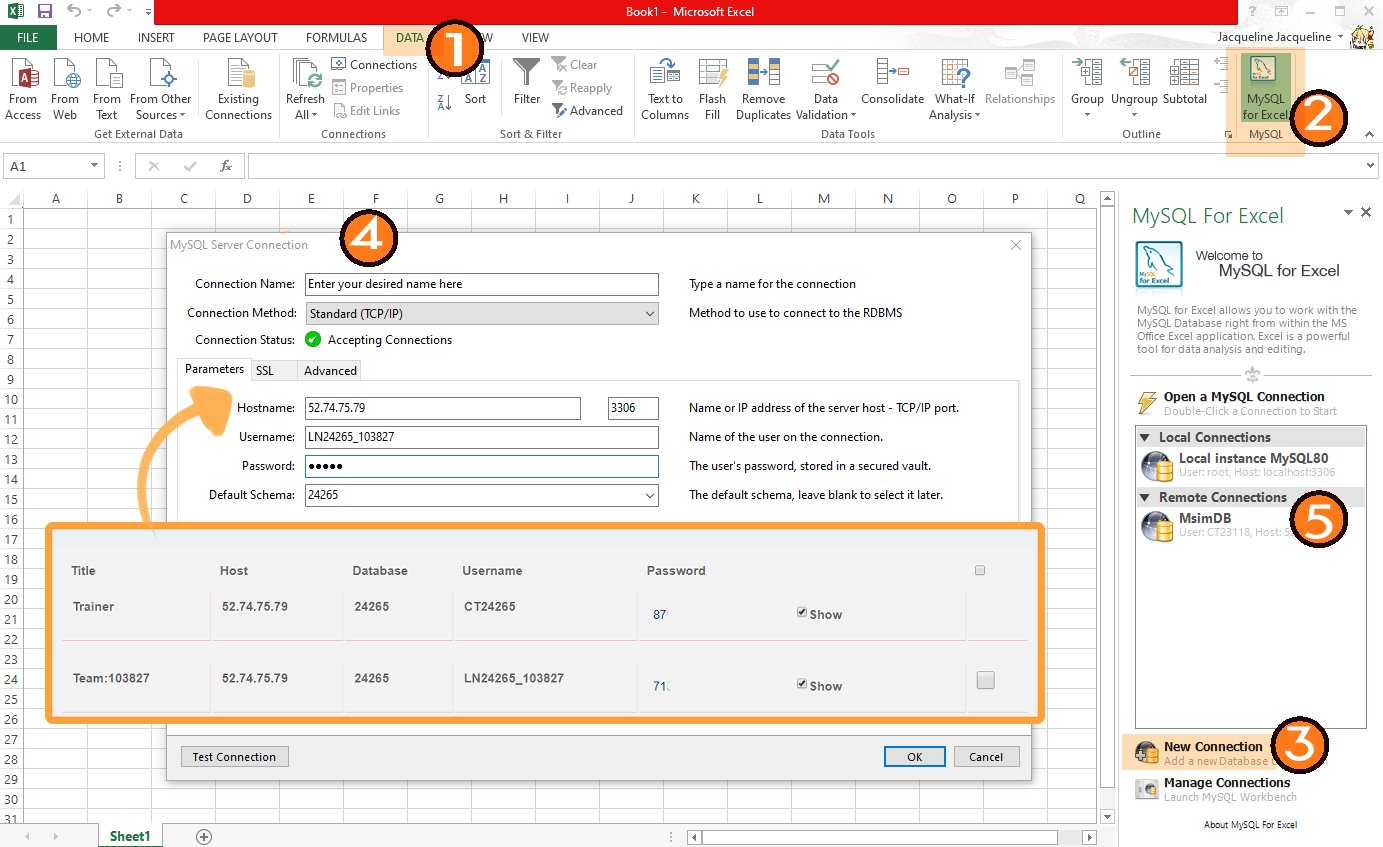
- Make a new blank sheet, and go to data
- You will see the My SQL icon on the top right
- Make a new connection
- Enter the details and click "ok"
- The successful connection will be shown here, click it to explore the data
A more complete data also available in excel or CSV format, please refer to this video for more information
https://youtu.be/vOS93tQuJoY